
Page Navigation
Sample Badge
Short summary of this page.
Page Navigation and Editing Guide
Section titled “Page Navigation and Editing Guide”This guide will show you how to find, navigate to, and open pages for editing in the Avada Live Builder.
Finding and Navigating to Pages for Editing
Section titled “Finding and Navigating to Pages for Editing”Step 1: Access the Pages Section
Section titled “Step 1: Access the Pages Section”- From the WordPress Dashboard, click on “Pages” in the left sidebar
- This will display a list of all pages on the website
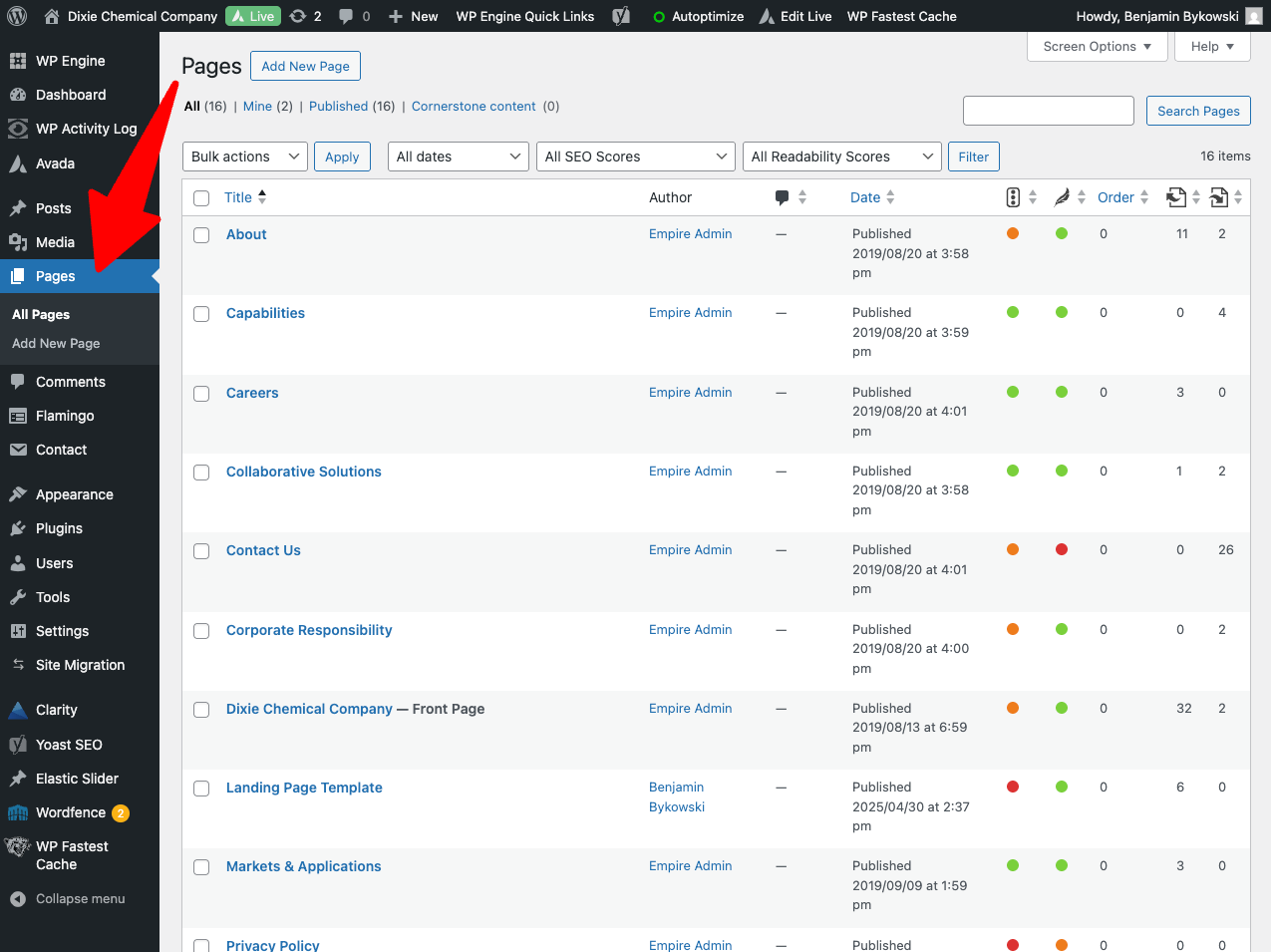
Pages menu in the WordPress sidebar
Step 2: Locate the Page You Want to Edit
Section titled “Step 2: Locate the Page You Want to Edit”- Browse through the pages list to find your target page
- Use the search box in the upper right to search by page title
- You can sort pages by clicking on the column headers (Title, Author, Date)
- Use the filter options to narrow down pages by date or status
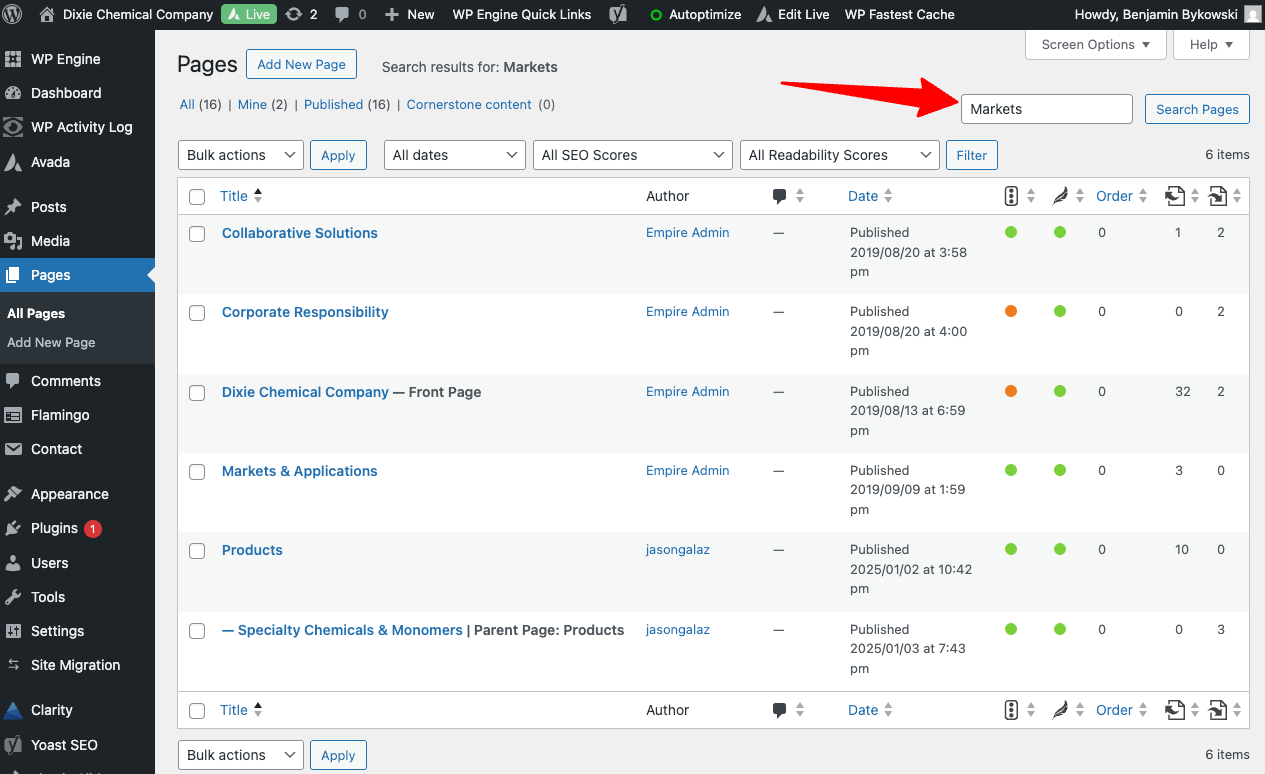
Pages list with search and filter options
Step 3: Understanding Page Status
Section titled “Step 3: Understanding Page Status”Pages can have different statuses:
- Published: Live on the website and visible to visitors
- Draft: Saved but not yet published
Step 4: Page Actions
Section titled “Step 4: Page Actions”Hover over a page title to reveal these action links:
- Edit: Opens the page in the standard WordPress editor
- Edit with Live Builder: Opens the page in Avada Live Builder (use this option)
- Quick Edit: Allows changing basic page properties without full editing
- Trash: Moves the page to the trash (can be restored later)
- View: Shows how the page appears on the live site
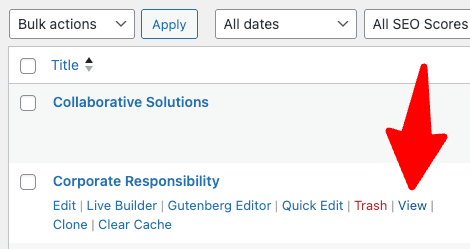
Page action links when hovering over a page title
Opening a Page in Avada Live Builder
Section titled “Opening a Page in Avada Live Builder”Step 1: Select “Edit with Live Builder”
Section titled “Step 1: Select “Edit with Live Builder””- Hover over the page title
- Click “Edit with Live Builder” from the action links
- This launches the Avada Live Builder interface
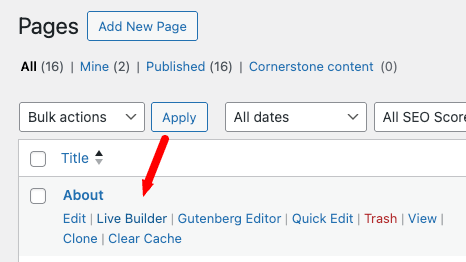
Edit with Live Builder option
Step 2: Wait for Live Builder to Load
Section titled “Step 2: Wait for Live Builder to Load”- The Live Builder may take a few moments to initialize
- You’ll see the page load with the Live Builder interface overlaid
- Scroll up and down to view different sections of the page
Using the Navigator Panel
Section titled “Using the Navigator Panel”- Click the Navigator icon in the left sidebar
- This shows a hierarchical tree view of all page elements
- Click any element in the Navigator to select it on the page
- Expand/collapse sections to find nested elements
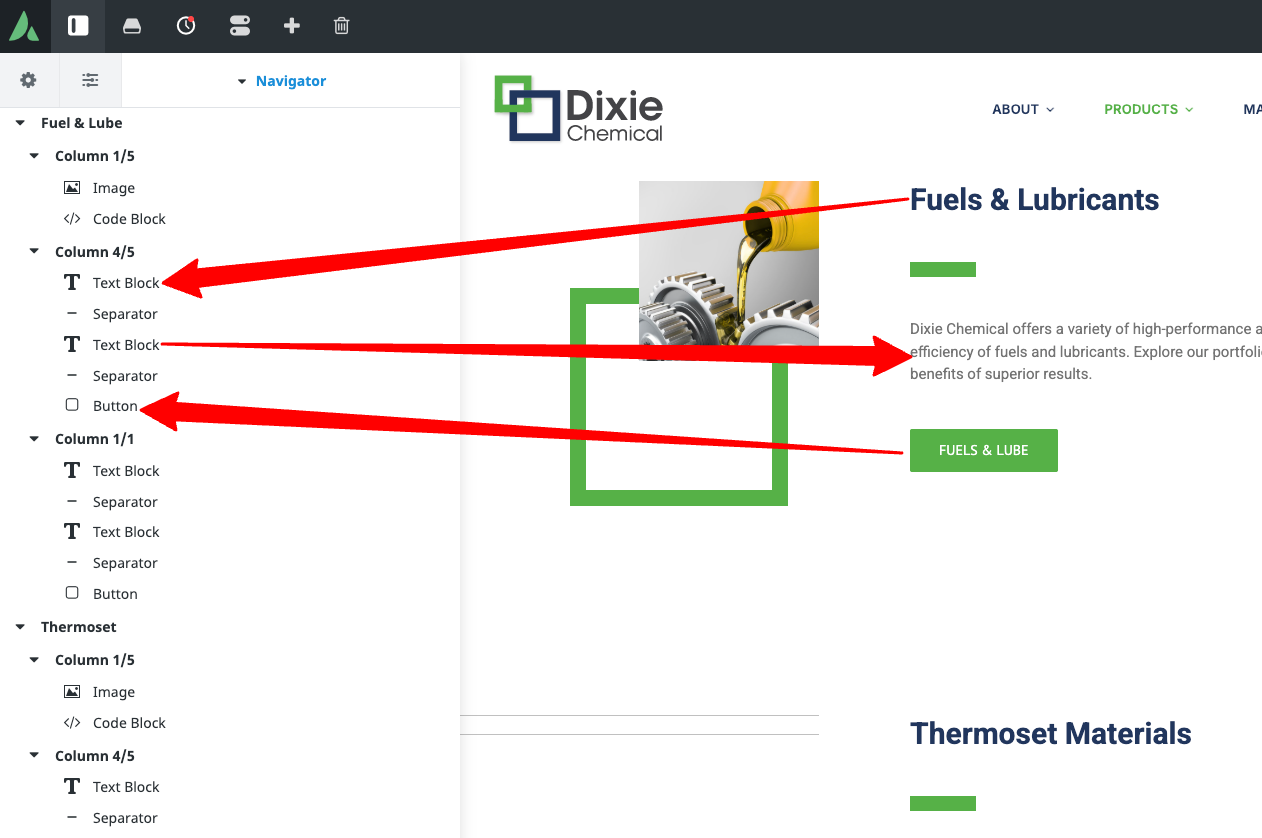
Navigator panel showing page element hierarchy
Saving Your Work
Section titled “Saving Your Work”Saving Options
Section titled “Saving Options”In the top toolbar, next to “Save” are these options:
- Save Draft: Saves changes without publishing
- Publish: Makes changes live on the website
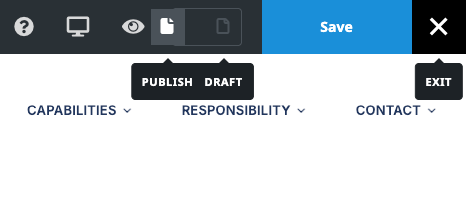
Save options in the top toolbar
Auto-Save Feature
Section titled “Auto-Save Feature”- Avada Live Builder automatically saves your work periodically
- You’ll see “Saved” appear briefly in the top toolbar when this happens
- Always manually save important changes to ensure they’re not lost
Exiting the Live Builder
Section titled “Exiting the Live Builder”Safe Exit
Section titled “Safe Exit”- Click “Exit” in the top toolbar
- If you have unsaved changes, you’ll be prompted to save before exiting
- This returns you to the WordPress admin Pages screen
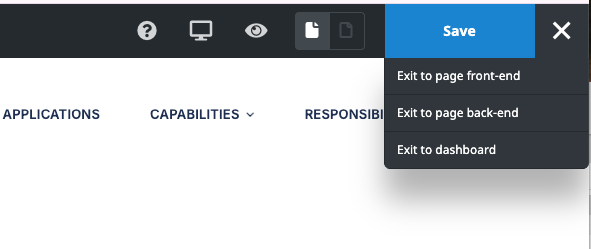
Exit confirmation dialog
Discarding Changes
Section titled “Discarding Changes”- If you want to abandon your changes:
- Click “Exit” in the top toolbar
- When prompted, choose “Discard Changes”
- Your changes will be lost and the page will remain as it was
Best Practices for Page Navigation
Section titled “Best Practices for Page Navigation”- Always check which page you’re editing before making changes
- Use the preview function to see how changes will look before publishing
- Save your work frequently to prevent losing changes
- Exit properly using the Exit button rather than closing the browser tab
- Be aware of which site you’re working on when managing both Dixie Chemical and American Carbonyl websites
Next Steps: Now that you know how to navigate to and open pages for editing, proceed to the Text Editing Guide to learn how to modify text content.