
WordPress Admin Access
Sample Badge
Short summary of this page.
This guide will show you how to log into the WordPress admin area and navigate to the pages section for editing content.
Logging into WordPress Admin
Section titled “Logging into WordPress Admin”Step 1: Access the WordPress Login Page
Section titled “Step 1: Access the WordPress Login Page”- Open your web browser
- Navigate to the website’s admin URL:
- For Dixie Chemical:
https://dixiechemical.com/wp-admin - For American Carbonyl:
https://americancarbonyl.com/wp-admin
- For Dixie Chemical:
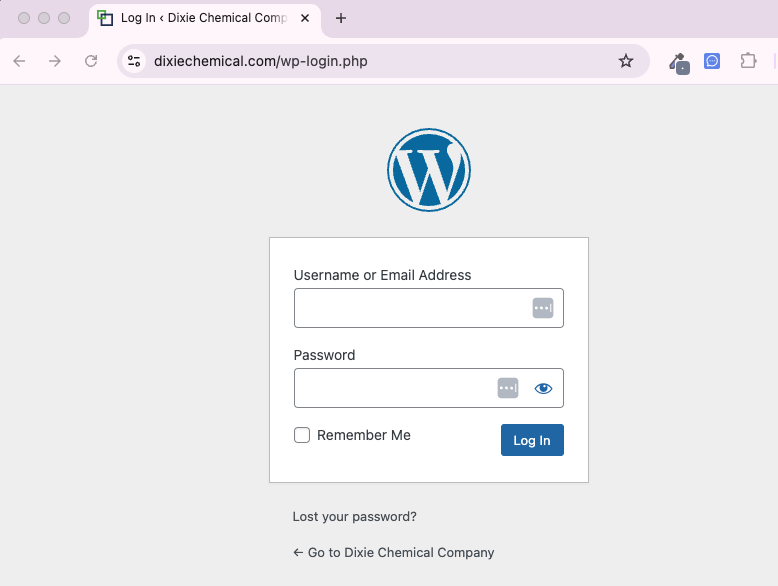
WordPress login screen
Step 2: Enter Your Credentials
Section titled “Step 2: Enter Your Credentials”- Enter your username or email address
- Enter your password
- Click the “Log In” button
Important: Your login credentials are unique to you. Never share your password with others.
Step 3: Navigate the WordPress Dashboard
Section titled “Step 3: Navigate the WordPress Dashboard”After logging in, you’ll see the WordPress Dashboard, which includes:
- Left Sidebar: Main navigation menu with access to all WordPress features
- Main Content Area: Displays information, notifications, and quick access widgets
- Top Bar: Shows the site name, admin user menu, and quick links
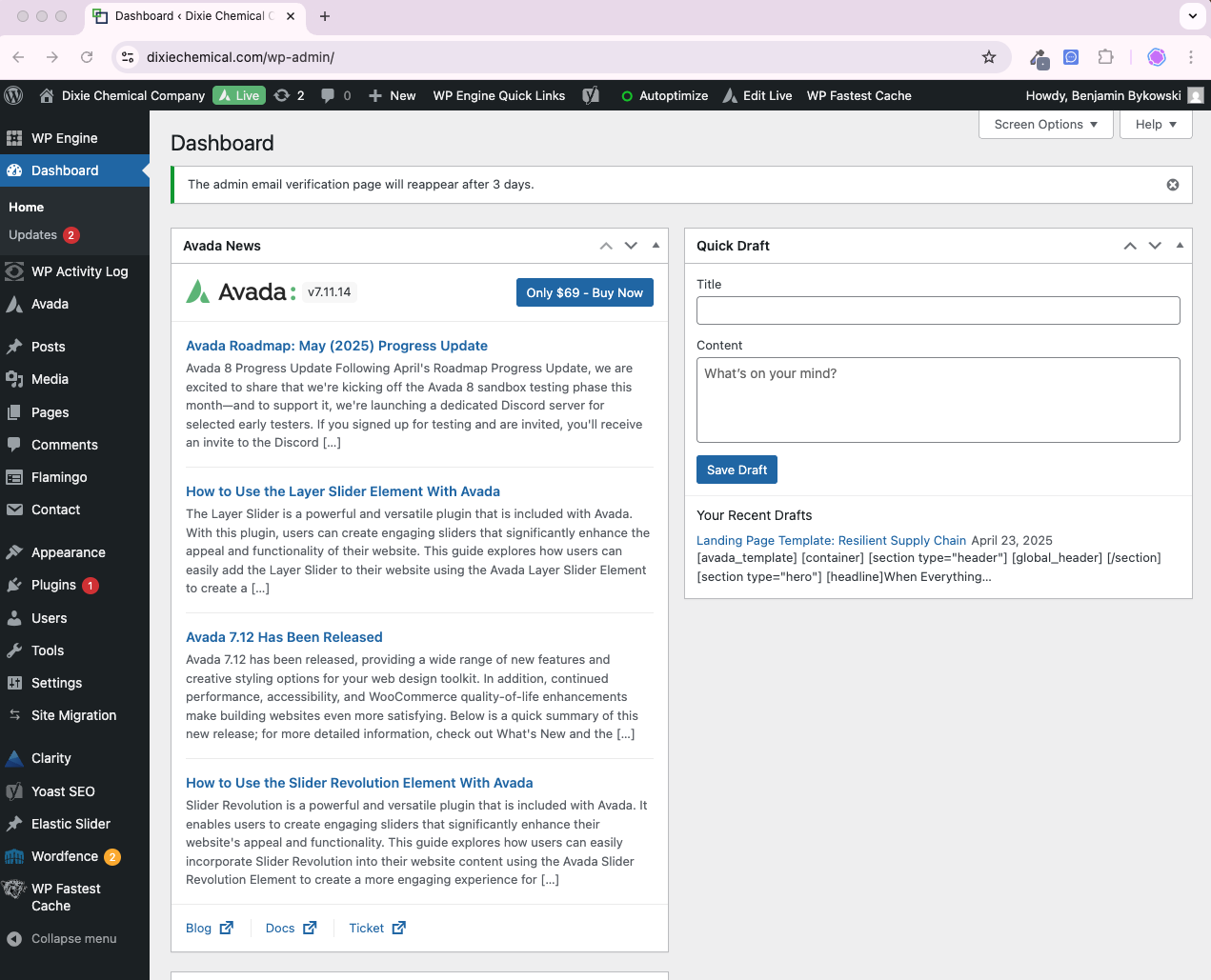
WordPress Dashboard
Finding Pages to Edit
Section titled “Finding Pages to Edit”Step 1: Access the Pages Section
Section titled “Step 1: Access the Pages Section”- In the left sidebar, locate and click on “Pages”
- This will display a list of all pages on the website
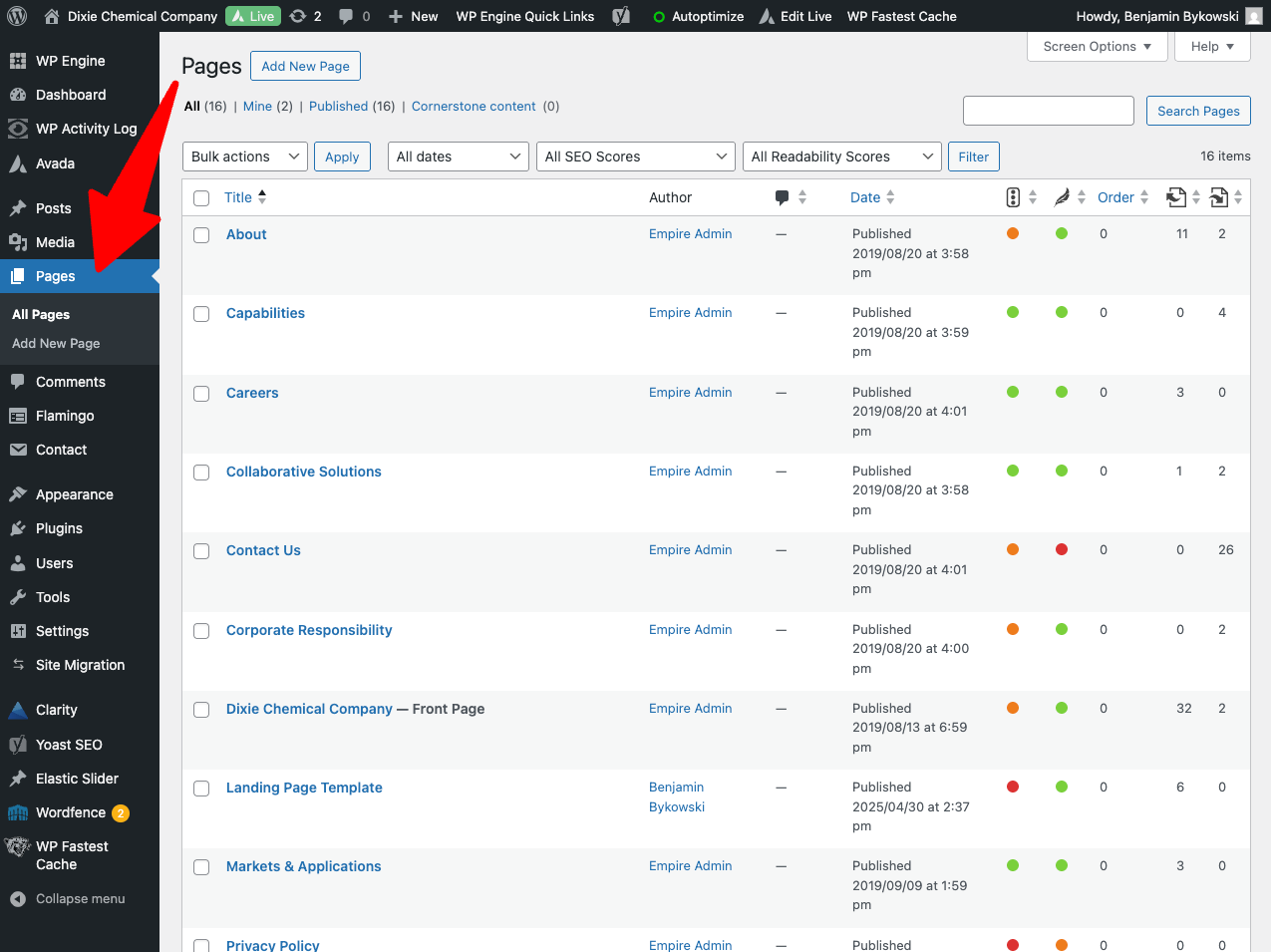
Pages menu in the WordPress sidebar
Step 2: Browse and Search for Pages
Section titled “Step 2: Browse and Search for Pages”- Pages are listed with their titles, authors, and publication dates
- Use the search box in the upper right to find specific pages by title
- You can also filter pages by date or status using the dropdown filters
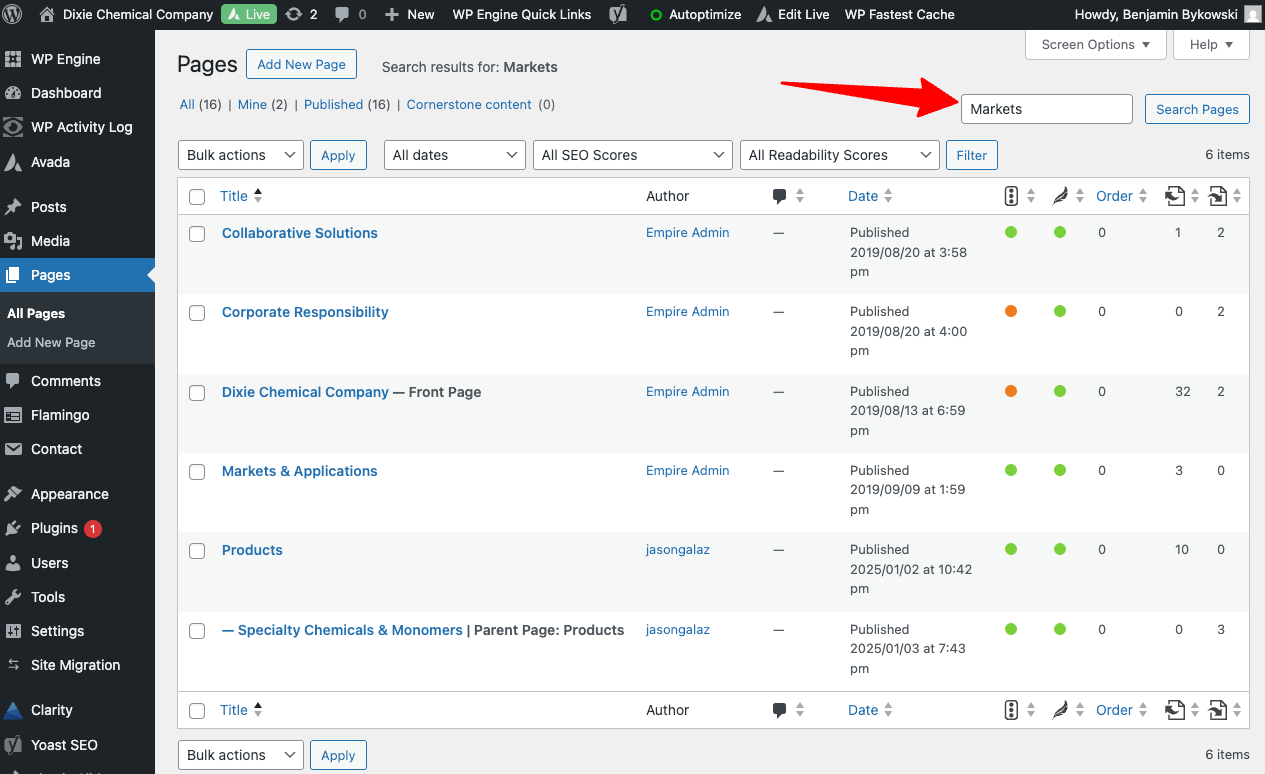
Pages list with search and filter options
Step 3: Preview a Page
Section titled “Step 3: Preview a Page”- Hover over a page title to reveal action links
- Click “View” to see how the page currently appears on the live site
- This is helpful to confirm before editing
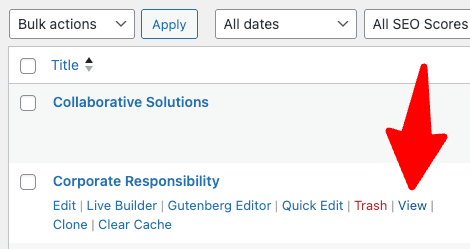
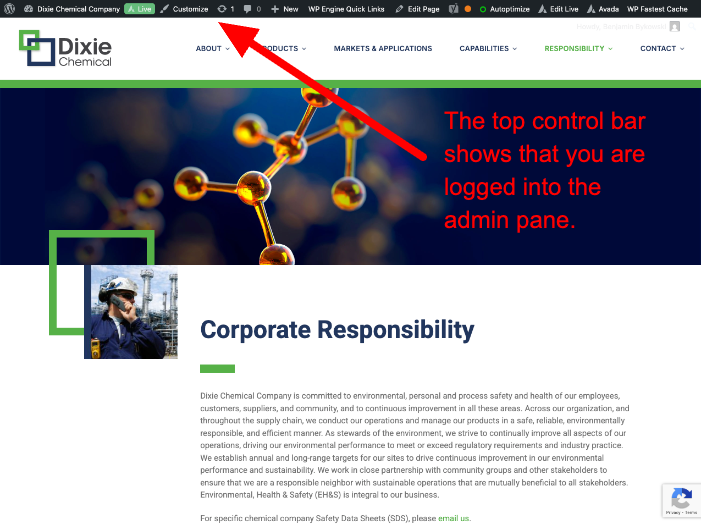
Page preview option
Opening a Page in Avada Live Builder
Section titled “Opening a Page in Avada Live Builder”Step 1: Select a Page to Edit
Section titled “Step 1: Select a Page to Edit”- From the Pages list, find the page you want to edit
- Hover over the page title to reveal action links
Step 2: Choose the Live Builder Option
Section titled “Step 2: Choose the Live Builder Option”- Click “Edit with Live Builder” from the action links
- This will open the page in the Avada Live Builder interface
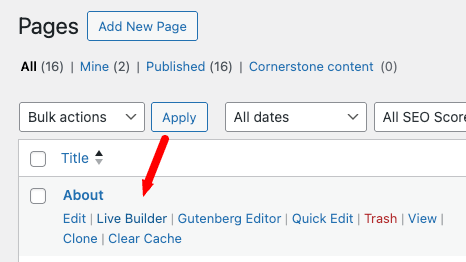
Edit with Live Builder option
Step 3: Wait for Live Builder to Load
Section titled “Step 3: Wait for Live Builder to Load”- The Live Builder may take a few moments to initialize
- You’ll see the page load with the Live Builder interface overlaid
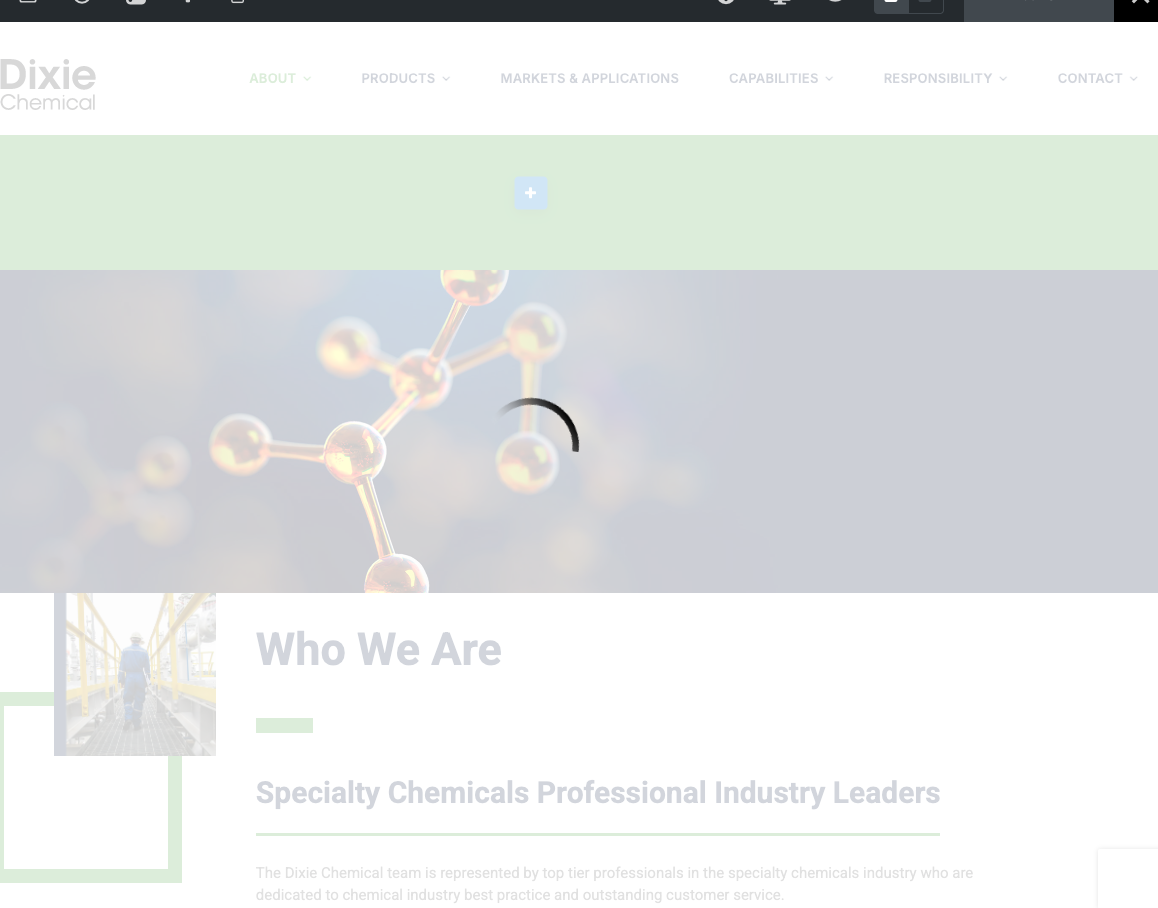
Live Builder loading screen
Navigating Back to WordPress Admin
Section titled “Navigating Back to WordPress Admin”From Live Builder
Section titled “From Live Builder”- Click the “Exit” button in the top toolbar of Live Builder
- This will return you to the WordPress admin Pages screen
From Any Admin Screen
Section titled “From Any Admin Screen”- Click on the website logo or name in the top left corner of the admin area
- This will take you back to the WordPress Dashboard
Best Practices for WordPress Admin
Section titled “Best Practices for WordPress Admin”- Always log out when finished, especially on shared computers
- Bookmark the login page for quick access in the future
- Use a secure password and change it periodically
- Be careful when bulk editing pages to avoid unintended changes
- Check which user account you’re using before making changes (shown in the top right corner)
Troubleshooting Login Issues
Section titled “Troubleshooting Login Issues”- Forgot Password? Use the “Lost your password?” link on the login page
- Login Redirects to Homepage? Clear your browser cache or try a different browser
- Can’t Access Admin Area? Contact your website administrator for assistance
Next Steps: Now that you know how to access the WordPress admin area, proceed to the Page Navigation Guide to learn how to find and edit specific pages.